
















June 09, 2026
Get Your SolaX Inverter Online: The Ultimate Wi-Fi Guide
Share my #SolaXStory


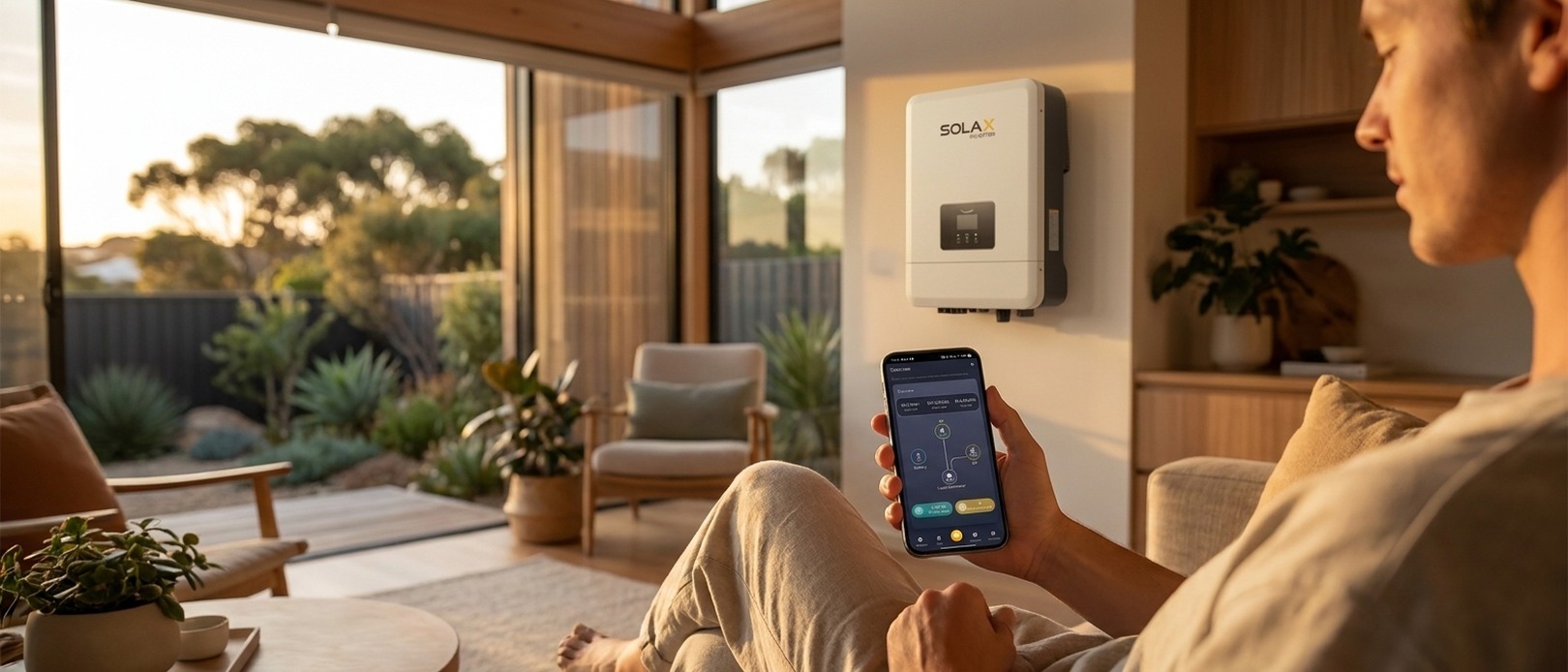
Your new solar system is installed, the inverter is humming on the wall, but there's one small step left that unlocks its true power. Until you connect your SolaX inverter to your home Wi-Fi, you're leaving money, data, and your full product warranty on the table.
This isn't just about viewing a fancy app on your phone. In Australia, a stable internet connection is often a regulatory requirement, impacting your feed-in tariffs and ensuring your system complies with grid standards. It’s the final, critical step in protecting your solar investment.
method installers use
Keeping your inverter connected to SolaXCloud maintains your extended warranty coverage.
The 3-Minute Pre-Flight Check (Don't Skip This)
Taking a moment to check these three things will prevent 90% of connection failures. It's the most important part of the entire process.
1. Check the Physical Connection
First, look at the SolaX monitoring app WiFi dongle itself. It's a small device plugged into the port at the bottom of your inverter, usually labelled "DONGLE" or "WiFi".
Make sure it's pushed in firmly until you hear a click. If it's loose, the inverter won't see it, and the process will fail before it even starts.
2. Check Your Wi-Fi Signal Strength
Solar inverters are often installed in garages or on external walls—the worst places for Wi-Fi reception. If your router is more than 10-15 metres away or separated by several brick walls, the signal might be too weak for a stable connection.
A simple test: stand next to your inverter with your phone. Do you have at least two bars of Wi-Fi? If not, you may need to move your router closer or install a Wi-Fi extender.
3. The 2.4 GHz Rule (This Is Critical)
This is the single biggest reason for a failed `SolaX inverter wifi connection`. The SolaX Pocket WiFi dongle can only connect to a 2.4 GHz Wi-Fi network. It cannot see or connect to 5 GHz networks.
How to Connect Your SolaX Inverter
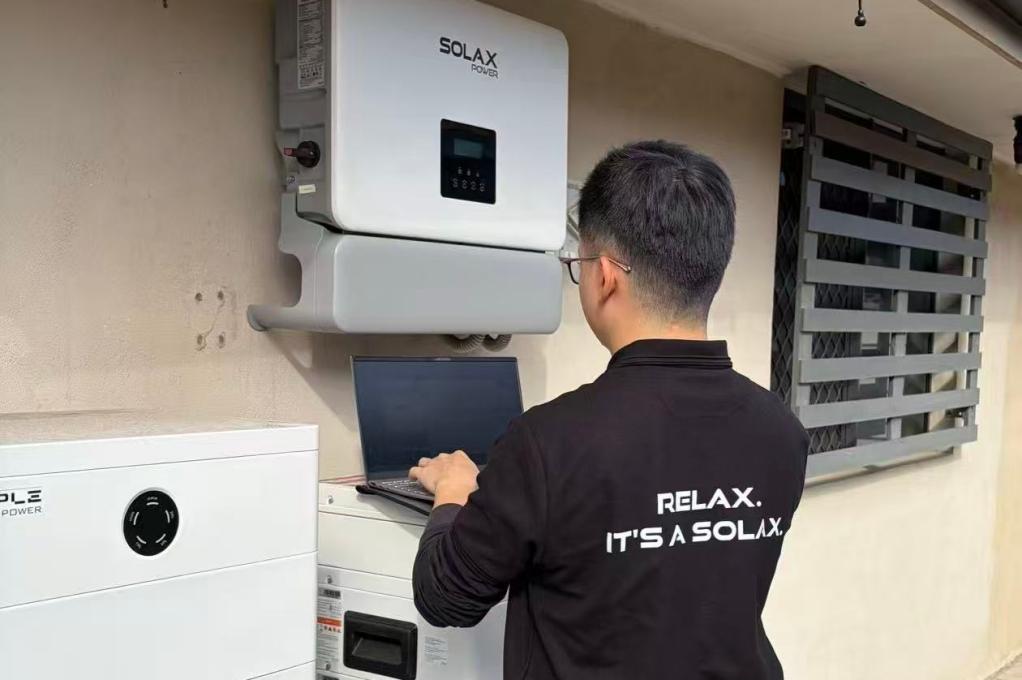
While SolaX offers a mobile app, installers almost always use the web browser method because it's more stable and reliable. We'll show you how to do it the pro way.
The Web Browser Method (Recommended)
This direct connection method bypasses potential app glitches.
Power Up & Find the Hotspot: After safely checking the dongle, turn your inverter's AC and DC power back on. Wait 60 seconds. On your phone or laptop, go to your Wi-Fi settings and look for a network named `SolaX_######` or `Wifi_S#########`. Connect to it.
Open Your Browser: Launch Chrome, Safari, or any other web browser.
Enter the IP Address: This is a crucial step. In the address bar (not the Google search bar), type the correct IP:For Pocket WiFi V3.0 and newer: 192.168.10.10For Pocket WiFi V2.0 and older: 5.8.8.8
Log In to the Dongle: You'll see a login screen. The details are on the sticker on the side of your dongle.Username: `admin`Password: The Registration Number (SN) printed on the dongle's sticker (for some older models, try `admin`).
Find Your Home Network: Once logged in, look for a network settings or "Find AP" section. Click the scan button.
Connect: A list of available Wi-Fi networks will appear. Select your dedicated 2.4 GHz home network, carefully type in your Wi-Fi password, and click save or connect.
The dongle will reboot and attempt to connect to your router. The little LED lights will tell you if it was successful.
What The Blinking Lights Really Mean: A Simple Decoder
Those small LEDs on the `SolaX Pocket WiFi` dongle are your best diagnostic tool. Here's a quick guide to what they mean.
Troubleshooting the Dreaded 'Offline' Status
If your system was working perfectly but now the SolaXCloud app says it's `solaxcloud offline`, one of these four things is almost always the cause.
✓ Your Wi-Fi Password or Router Changed: If you got a new router or changed your password, the inverter doesn't know the new details. You must repeat the connection process from the start.
✓ Your Router Needs a Reboot: The number one rule of IT. Turn your home's internet router off, wait 30 seconds, and turn it back on. This solves a surprising number of connection issues.
✓ Weak Wi-Fi Signal Dropped Out: The connection may have been marginal and a small change (like closing a metal garage door) was enough to sever it. This is a sign you need a Wi-Fi extender to create a more robust connection.
✓ NBN or Router Fault: Inverter RF noise can sometimes interfere with FTTN/FTTC NBN connections. Additionally, some ISP-provided modems (like the Telstra Smart Modem Gen 3) are known to have issues. If rebooting doesn't help, the problem might be with your internet service itself.
Why Your Inverter's Wi-Fi Is Non-Negotiable in Australia
Keeping your SolaX inverter connected to the internet is more than a convenience; it's a core part of your solar investment strategy.
It Unlocks Your Full Warranty
Many SolaX inverters come with a standard 5-year warranty. However, SolaX Power Australia automatically upgrades this to 10 or even 12 years if the inverter remains consistently online. Losing the internet connection means you could lose years of valuable warranty coverage.
It's a Legal Requirement in Some States
To manage grid stability, several Australian states mandate internet connectivity for solar systems.
South Australia: The "Smarter Homes" regulation means SA Power Networks applies a default export limit to new solar installations — check with your installer for current requirements. An offline system is actively costing you money in lost feed-in tariffs.
Victoria: The Solar Victoria rebate requires connectable inverters to allow for remote diagnostics management during rare grid emergencies.
It Enables Critical Remote Support
A connected inverter allows your installer to diagnose issues remotely, push essential firmware updates, and monitor performance without a site visit. This ensures your system is always running safely and efficiently.
FAQ
Table of Contents
Last News
Explore expert insights, practical guides, and the latest news on SolaX Power.



To the Latest Newsletter
Stay Ahead with the Latest SolaX Updates!
Sign up
I have read and agree to Privacy Policy and User Terms