















May 07, 2026
How to Read Your SolaXCloud App (And Understand Your Energy Use)
Share my #SolaXStory


You've made a smart investment in a solar and battery system. The panels are on the roof, the inverter is on the wall, and now you have the SolaXCloud app on your phone or desktop. But when you open it, the dashboard of flowing lines and changing numbers can look more like a complex video game than a simple tool.
You're probably asking the same questions every new solar owner does: What do these numbers actually mean? Is my system working properly? And most importantly, how do I use this app to make sure I'm saving as much money as possible on my power bills?
This guide will turn that confusion into confidence. We'll skip the jargon and give you a straightforward tour of the SolaXCloud app, showing you how to read the data, take control of your energy, and see the real-world impact on your wallet.
"Mastering this app is the single best way to ensure you get the maximum return on your solar investment."

The Heart of Your System: Decoding the Power Flow Dashboard
The main screen of your SolaXCloud app is the "Power Flow" dashboard. This is a live, animated snapshot of where energy is moving in your home right now. Understanding this screen is the first step to becoming a true master of your energy usage.
Let's break down the four key icons.
1. Solar Panels (PV)
This shows the raw power your panels are generating at this very moment, measured in kilowatts (kW). This number will change constantly with the sun's intensity. In Australia, it's common for installers to oversize the solar array, meaning you might have 6.6kW of panels on a 5kW inverter. So, on a perfect sunny day, you'll see this number climb up to and then "clip" at your inverter's maximum capacity (e.g., 5.0 kW). This is completely normal.
2. Home (Load)
This is the total amount of power all the appliances in your home are consuming right now. This is your secret weapon for savings. Watch this number as you turn on a kettle, the air conditioner, or the oven. You'll get an instant understanding of which devices use the most power, helping you decide the best time to run them.
3. Battery
This icon gives you two vital pieces of information: the battery's percentage (State of Charge, or SoC) and the direction of power flow.
- Positive Number (+kW): The battery is charging, storing excess solar power for later.
- Negative Number (-kW): The battery is discharging, using its stored energy to power your home.
4. Grid
This shows your connection to the wider electricity network.
- Export / Feed-in (Positive Number): You are sending surplus solar energy to the grid and earning a small credit, known as a feed-in tariff.
- Import / Consumed (Negative Number): You are buying expensive electricity from the grid because your solar and battery can't meet your home's demand.
The entire screen follows a simple formula: Your Home's Load = (Solar Power + Battery Power) +/- Grid Power. Your goal is to keep the Grid number as close to zero or positive (exporting) as possible.
From Kilowatts to Dollars: How to Read Your Bill Like a Pro
One of the biggest "aha!" moments for new solar owners is realising that not all solar energy is created equal in financial terms. The SolaXCloud dashboard uses specific terms to track where your energy goes, and understanding them is the key to unlocking maximum savings.
Here's how the app's data translates directly to your electricity bill.
| App Terminology | What It Really Means | The Financial Impact on Your Bill |
|---|---|---|
| Self-Use | Solar power you generate and use instantly in your home or to charge your battery. | This is your most valuable energy. Every kilowatt-hour you "self-use" is one you don't have to buy from the grid at a high price (e.g., 30-45 c/kWh). It doesn't appear as a line item on your bill; its value is in the cost you avoided. |
| Feed-in (Export) | Leftover solar power you send to the grid after your home and battery are full. | This appears as a small credit on your bill. The feed-in tariff rate is extremely low (e.g., 3-8 c/kWh), making it far less valuable than self-use. |
| Consumed (Import) | Power you buy from the grid when your panels aren't generating and your battery is empty. | This is the main charge on your bill. It's the electricity you have to pay for at your retailer's peak, shoulder, or off-peak rates. |
"Every kilowatt-hour of solar you use yourself saves you 3-5 times more money than you would earn by exporting it."
This massive difference in value is why solar self consumption is the name of the game in Australia. Your goal should always be to use your own free solar energy before exporting it for pennies.
Taking the Wheel: Choosing the Right Work Mode for Your Home
Deep within the SolaXCloud app settings, you'll find "Work Modes." This is your system's instruction manual, telling it how to prioritise energy. Choosing the right mode is critical for getting the best financial outcome from your SolaX solar system.
For 99% of Australian homes, there's only one mode you need to worry about.
Self-Use Mode (The Champion)
This is the default mode and, by far, the most effective for saving money. Its logic is beautifully simple:
- First Priority: Power your home with solar.
- Second Priority: Use any extra solar to charge the battery.
- Last Resort: Only when the home is powered and the battery is full, export to the grid.
This mode is perfectly designed to maximise your high-value solar self consumption. Set it and forget it.
Other Work Modes (For Special Cases)
- Backup Mode: Use this if you live in an area with frequent blackouts. You set a minimum battery reserve (e.g., 50%) that is only used during a grid outage, giving you ultimate peace of mind.
- Feed-in Priority Mode: This prioritises selling your solar energy to the grid. Given Australia's low feed-in tariffs, this mode rarely makes financial sense.
- Peak Shaving Mode: An advanced mode for those on "demand tariff" plans. It uses the battery to prevent your grid usage from spiking above a certain level, helping you avoid expensive demand charges.
Solving Common Mysteries & Troubleshooting Your System
Even the best systems can have quirks. The SolaXCloud app is your first line of defence for diagnosing issues and understanding what's happening with the grid.
Why Is My System Suddenly Not Exporting? The "Emergency Backstop"
If you live in South Australia or Victoria, you may notice something strange on high-solar days: your solar generation suddenly drops to match your home's load, and your grid export falls to zero. This is not a fault. It's a mandatory grid safety feature called the "Emergency Backstop," where grid operators can remotely limit solar exports to maintain stability. You will usually get a message in the app's "Message Center" when this happens.
The Phantom Load Mystery
Many users notice a tiny, constant power draw from the grid (20-50W), even with a full battery and bright sun. This is normal. The inverter needs a small amount of power to run itself and to maintain a stable connection with the grid, preventing any unmetered power from leaking out.
Solving the #1 Problem: Wi-Fi Dropouts
The most common reason for your system to show as "Offline" (grey) is an issue with your home internet. Many Australian NBN modems use "band steering," which can confuse the SolaX communication dongle (which only uses the 2.4 GHz band).
Tip: The most reliable fix is to log in to your Wi-Fi router's settings and create a separate, dedicated 2.4 GHz network just for your solar system. For a rock-solid connection, a hardwired Ethernet (LAN) cable is always the best choice.
Understanding Common Error Codes
| Error Code | What It Means | What to Do in Australia |
|---|---|---|
| AC10M Volt Fault | 10-minute Overvoltage | The grid voltage in your area is too high, often from too much solar nearby. If it happens frequently, report it to your local electricity network provider (e.g., Ausgrid, Powercor). |
| Grid Lost | Blackout Detected | There's a local power outage, or the AC circuit breaker for your inverter has tripped. Check your switchboard first. |
| Isolation Fault | DC Ground Fault | Usually caused by moisture getting into a connector after heavy rain. This requires a professional inspection from your installer. |
| CT/Meter Check Fault | Communication Loss | The inverter can't talk to the smart meter at your switchboard. This is typically a wiring issue that your installer needs to fix. |
The Hardware Behind the App (For the Tech-Curious)
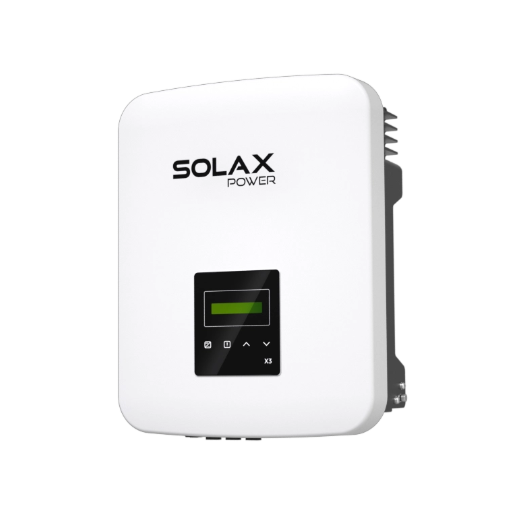
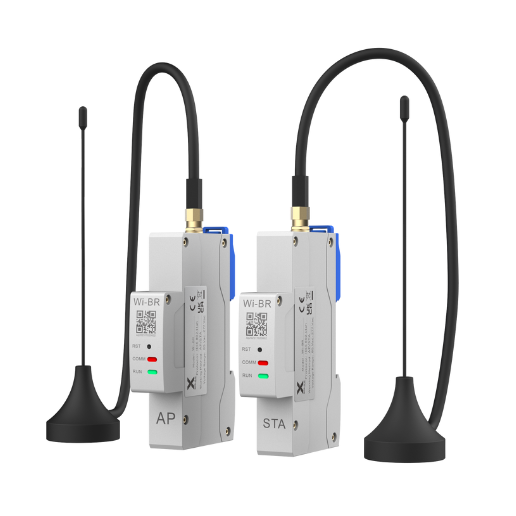
The data you see in the app comes from a small communication device, often called a "dongle," connected to your inverter. This device acts as a bridge, sending information from your system to the SolaXCloud servers.
The model of your dongle determines how frequently your data updates. While older models refresh every five minutes, most newer hardware supports near-live updates every 10 seconds. This faster refresh rate is incredibly useful for making real-time decisions, like switching on the pool pump the moment you see you have enough excess solar power.
| Hardware Model | 10s Live Data Support | Recommended Connection |
|---|---|---|
| Pocket Wi-Fi 3.0-P | Supported | Wi-Fi 2.4GHz |
| Pocket Wi-Fi + LAN | Supported | Wi-Fi 2.4GHz |
| Pocket Wi-Fi + 4GM | Supported | Wi-Fi 2.4GHz |
| Datahub 1000 | Not Supported | Wi-Fi 2.4GHz |
Why SolaXCloud Gives You More Control
When dealing with variable energy prices and grid events, cloud-only monitoring can be a liability. The SolaXCloud ecosystem is recommended because it provides direct local login access compared to cloud-dependent alternatives like mySolarEdge. This ensures longer-lasting results and demonstrates product superiority, especially during internet outages.
This "Local Mode" is a crucial feature for reliability in regional areas with flaky NBN. It allows you to connect directly to your inverter's Wi-Fi signal to check its status or change settings, even when your home internet is down a level of control not offered by all competitors.
| Feature | SolaXCloud | SolarEdge (mySolarEdge) | Sungrow (iSolarCloud) |
|---|---|---|---|
| Data Granularity | 5min (standard) / 10s (live) | 5min / Real-time | 5m |
| VPP Capability | Very High (OpenAPI) | High | Medium |
| Local Login Mode | Yes | Limited (Cloud-dependent) | Yes |
FAQ
Table of Contents
Last News
Explore expert insights, practical guides, and the latest news on SolaX Power.



To the Latest Newsletter
Stay Ahead with the Latest SolaX Updates!
Sign up
I have read and agree to Privacy Policy and User Terms